How to Make a Photo Rap: A Step-by-Step RapAvatar Guide
Learn how to make a photo rap: pick a sample, add a photo, write a short topic, choose a flow, and review the audio before creating a video.
A photo rap is one still image plus a ten-second verse, lip-synced so it looks like the person (or the cat) is actually spitting the bars. In RapAvatar you pick a sample, drop in a photo, type a one-line topic, pick a flow, and listen. The listen matters more than it sounds — you decide whether to spend a render only after you've heard it.
Keep the scope small. A teammate who blames lag, a cat that acts like it co-signed the lease, a happy-birthday jab at Mom — any one of those is plenty. Ten seconds won't hold a biography, so don't hand it one.
Before you start: the photo and the idea
Have an image ready as JPG, PNG, or WebP, under 8 MB. No photo handy? There's a sample you can borrow just to see how the workbench behaves.
If it's a person, the easy mode is one face, looking roughly at the camera, mouth not covered by a hand or a mic, lit so you can actually see it. That won't guarantee a clean animation — nothing here does — but it's the version least likely to fight you. And only use a photo you're allowed to animate and post.
On the idea: you can figure it out as you type. "My friend blames lag for every missed shot" already tells the writer what the joke is. "Make a funny rap" hands it a blank page and hopes.
Step 1: Pick a sample video
Open the workbench. Under Pick a Sample Video, tap a card — it plays. You'll see directions like Gaming Roast, Bulldog Roast, and a few birthday ones.
Play more than one. A pet roast and a sincere thank-you might share a flow but they want completely different setups, and the samples are the fastest way to feel that difference before you commit. Tap to enlarge if you want a closer look at the framing.
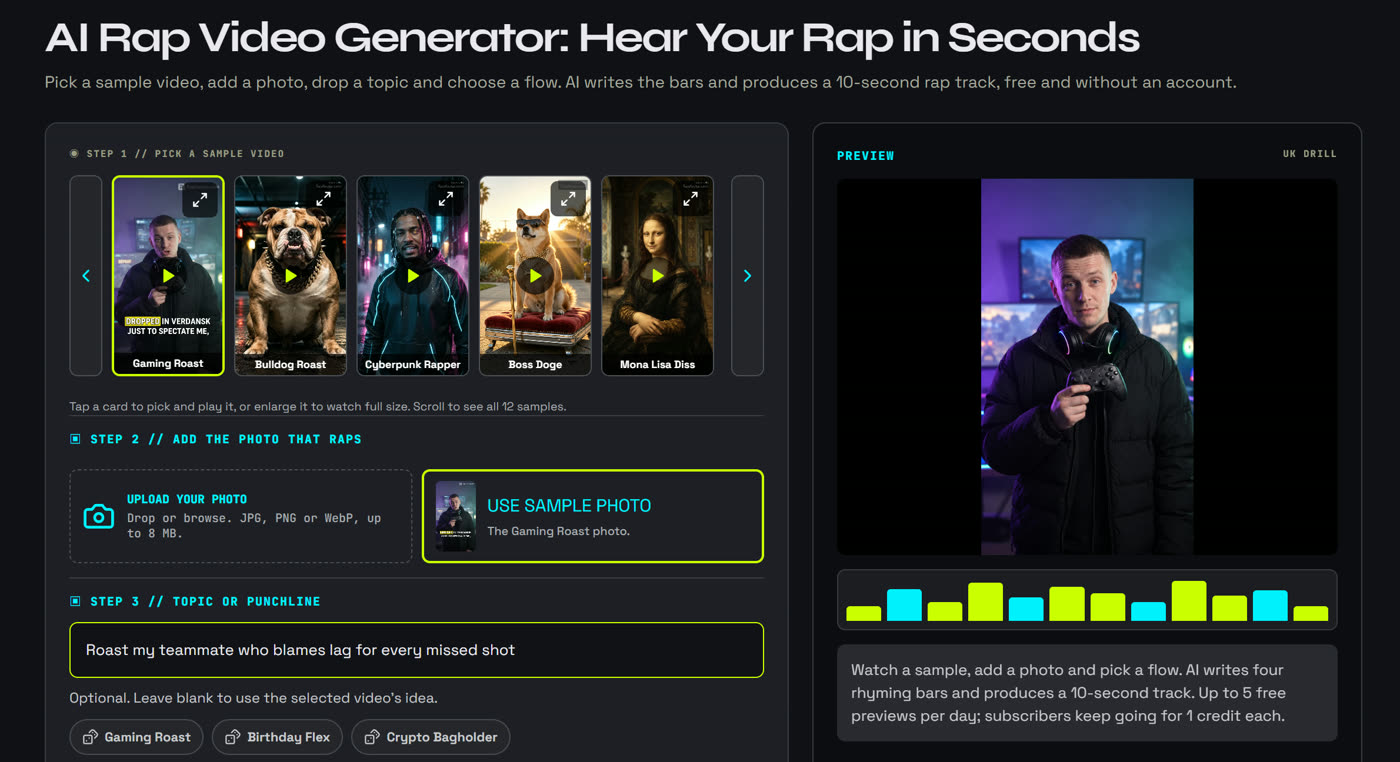
The workbench set up for the render later in this guide, captured November 2, 2026: Gaming Roast sample, sample photo, our topic, UK Drill.
Step 2: Add the photo that raps
Under Add the Photo That Raps, hit Upload Your Photo and pick your image. Just testing the waters? Use Sample Photo lets you skip the upload.
Here's the step almost everyone fumbles the first time: playing a sample does not select that sample's photo. The video keeps playing, it feels like something got chosen, and nothing did. You still have to upload your own or tap Use Sample Photo. If your result looks like it ignored you, this is usually why.
Leave the group shot for later. Several faces in one frame and it's not obvious who's supposed to be rapping. One subject is simply easier to judge.
Once you upload, a voice row appears. Match photo is the default and lets the AI choose a voice that suits the picture; tap Girl, Boy, Woman, Man, Grandma, or Grandpa to overrule it.
Step 3: One topic, one situation
In Topic or Punchline, say who it's about and what they do. Short brief only — the field caps at 60 characters, and it won't take a finished verse.
A few that work:
| What you're making | Topic to try |
|---|---|
| Gaming roast | Roast my teammate who blames lag for every missed shot |
| Birthday joke | Birthday roast for my friend who leaves every party early |
| Pet performance | My cat roasts me for paying rent while she runs the house |
Notice they're each about one thing. Ten seconds comfortably holds the teammate and his lag excuse. It does not hold his entire ranked history.
Compare these two and the reason becomes obvious:
Make a funny rap about my friend— nothing to grab onto.Roast my friend who says outside but hasn't left home— now there's a scene. His text says one thing, his shoes say another.
Give it the situation; let it handle the rhyming. And if you'd rather just run with the selected sample's idea, leave the field empty — that's allowed.
Out of material? Steal a scenario (and its matching short topic) from our roast rap lyrics for friends.
Step 4: Pick a flow, then generate
Under Pick Your Flow, you're choosing how the verse feels — BPM won't tell you that part. Boom Bap sits well under a conversational roast. Melodic Rap is warmer, which suits a birthday or a thank-you. UK Drill gives a gaming persona a harder edge. Those are starting guesses, not rules; a flow you'd never pick on paper sometimes lands the joke best.
Then hit Generate Fire Rap Preview (Free). You get three lyric drafts to choose from, and if none of them fits, you can add a hint and redraft. Pick one and the audio follows. You can run the free preview without an account, up to whatever the page currently shows as the daily allowance.
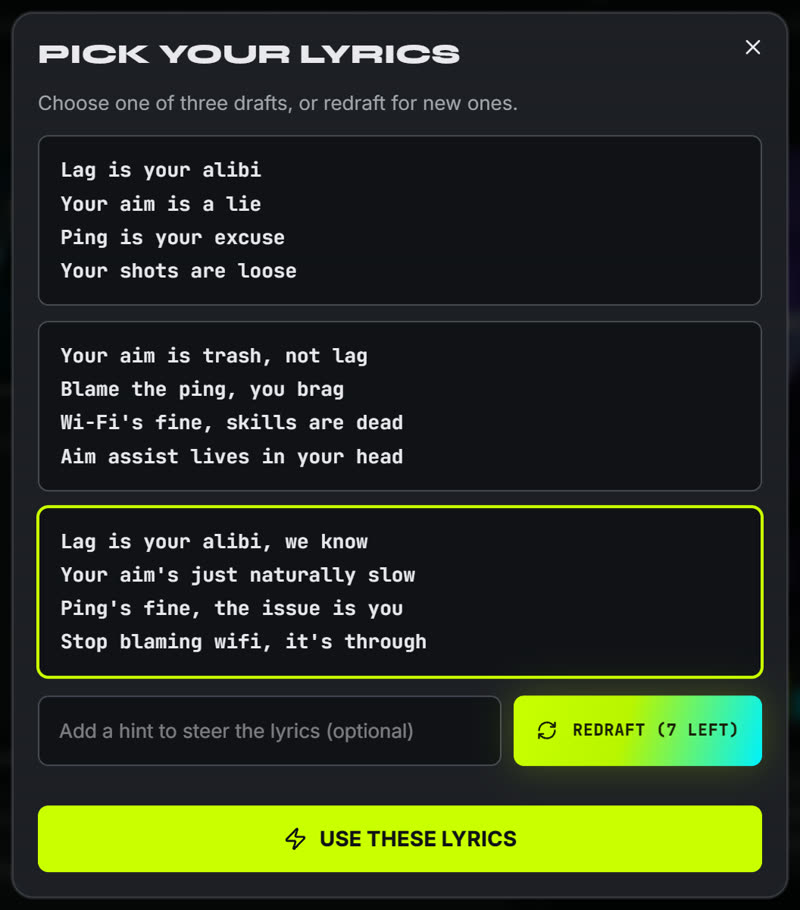
The draft picker from our test run. We took the third draft.
The listen is the real checkpoint
Play it twice, and listen for different things each time.
First pass, one question: does the joke land without you explaining it? If you'd have to add a sentence of context, the topic was too vague.
Second pass, go to the words. Can you actually hear the name, the age, the detail the whole bit hangs on? And does the last line get a breath to land, or is it jammed into the final beat? That ending is usually what separates "funny" from "almost."
If the verse could be about anyone, put a real habit in the topic and regenerate. If the words are right but the vibe's off, keep the topic and only change the flow — swap both at once and you'll never know which one fixed it.
One thing this check does not cover: the face. Lip-sync and animation only exist once there's a video, so that review comes later.
Taking it to video
Happy with the preview? Use the video option on that result. Expect a sign-in or credit prompt, and check the cost first — a free audio preview doesn't pay for the render.
RapAvatar currently lists 10-second vertical clips at 1080p. When one finishes, watch the whole thing, not the first two seconds: the mouth, the captions, the audio, and that last line. You can download it from the videos page in your account, and it's worth playing outside the browser before you send it anywhere.
One real render, start to finish
Here's what came out when we ran the gaming topic from the table above through these steps. We used the sample photo rather than a new upload, so your own picture may behave differently.
The finished video, captions and watermark included. Open the full clip.
| Setting | What we used |
|---|---|
| Photo | Gaming Roast sample photo |
| Topic | Roast my teammate who blames lag for every missed shot |
| Flow | UK Drill |
| Watermark | On, the default |
| Cost | The button showed 10 credits for this run |
| Output | 1080 × 1920, about 10 seconds |
The draft we picked:
Lag is your alibi, we know
Your aim's just naturally slow
Ping's fine, the issue is you
Stop blaming wifi, it's through
The captions matched that draft word for word, and all four lines fit before the clip ended. It wasn't flawless, though. The picture on the upper monitor changes partway through, which is exactly the kind of detail you only catch by watching the whole video. We didn't time the render, so we're not quoting how long one takes.
When the first try isn't it
It sounds generic. You gave it a label, not a scene. "First to leave every party" has a picture built in; "my best friend" doesn't. More insults won't fix it — more specificity will.
A name comes out wrong. Try the short name or the nickname everyone actually uses. Pile three unusual names into one brief and you've just created three things to re-check, so listen again before you render.
The face is hard to read. Go back to a clearer single-subject photo with less of it covered. Treat photos as experiments — two perfectly good pictures won't necessarily animate the same.
You wanted the exact words from a template. The workbench writes its own lyrics; there's no paste-a-full-verse field. Use the template as your topic and keep the original wording for a separate recording if it has to stay word-for-word.
Questions people actually ask
Do I have to rap it myself?
No. You type the topic, the generator writes and performs it. Nothing here asks you to record your own voice.
Can I make one for free, without signing up?
The audio preview, yes — no account, up to the daily free limit shown on the page. That's where "free, no sign up" ends, though. The video render is the part that brings in a sign-in and credits.
Will my video have a watermark?
By default, yes. Free and non-subscriber renders carry it; removing it is a subscriber option you set before you generate. So a clean export is the paid path, not a hidden toggle on the free one.
Can I use my own song or rap audio?
No — and it's worth being plain about it. The workbench writes the verse from your topic; there's no field to upload an existing track, drive the mouth from your own MP3, or clone a particular artist. If you already have a recording that has to stay exact, this isn't the tool that syncs it.
Does it work on iPhone or Android?
It runs in the mobile browser, so there's nothing to install. Same four steps — just give the photo upload and the preview a moment on a phone connection.
Can I make my dog or cat rap?
Yes, there are pet samples and a dedicated pet rap generator. Start with a clear, front-on pet portrait and one plain idea — the face-tracking has an easier time when the muzzle isn't turned away or covered.
What photo works best?
One face, looking at the camera, mouth uncovered, even light. Blur, hard shadows, or a half-hidden mouth are exactly where the animation starts to warp — so that's the first thing to swap if a result looks off.
Why does my video ignore the sample I liked?
Almost always Step 2 — you played a sample but never selected a photo. Upload yours or tap Use Sample Photo, then generate again.